


Turning the ScanSnap Off
- Turn off the ScanSnap.
iX1600/iX1500/iX1400
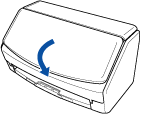
Close the ADF paper chute (cover) of the ScanSnap.
iX1300
Close the ADF paper chute (cover) of the ScanSnap.
When the ADF paper chute (cover) is closed, the extension will return to the original position in the ADF paper chute (cover) automatically.

- After the ScanSnap is left unused for one minute, it turns off resulting in the [Scan] button turning off.
iX500/S1300i
Close the ADF paper chute (cover) of the ScanSnap.

Example: iX500
- The [Scan] button turns off.
iX100/S1100i
Close the feed guide of the ScanSnap.
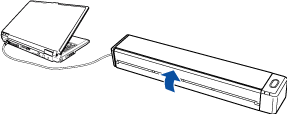
Example: iX100
- The [Scan/Stop] button turns off.
SV600
Press the [Stop] button on the ScanSnap for three seconds or longer.
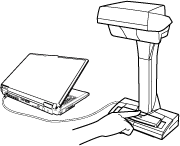
- The power LED turns off.
The ScanSnap is turned off and the ScanSnap Manager icon in the Dock changes from
 to
to  .ATTENTION
- For iX1600/iX1500/iX1400/iX500/S1300i, close the ADF paper chute (cover) after putting the extension back.
- If moving the ScanSnap, first turn the power off and remove all cables.
- For iX1600/iX1500/iX1400/iX1300/iX500/S1300i, the bottom part of the ScanSnap may become hot when the ScanSnap is being used but this does not affect ScanSnap operation or cause any physical harm. Be careful not to drop the ScanSnap when carrying it.
HINT- For iX1600/iX1500, the ScanSnap is turned on/off in conjunction with the computer's power if [Wi-Fi off] is selected for [Wi-Fi connect mode] in the [Wi-Fi settings] screen on the touch panel and if the ADF paper chute (cover) is open. If you keep the ScanSnap connected to the computer, you do not have to worry about turning the power ON/OFF.
For details about how to select [Wi-Fi off] for [Wi-Fi connect mode], refer to Turning Off the Wireless LAN Connection (iX1600 / iX1500).
- For iX1300/iX500/iX100, if the Wi-Fi switch is off, the power of the ScanSnap and the computer is used to operate both devices. If you keep the ScanSnap connected to the computer, you do not have to worry about turning the power ON/OFF.
- For iX1400/S1300i/S1100i, the power of the ScanSnap is linked with the power of the computer to which the ScanSnap is connected. If you keep the ScanSnap connected to the computer, you do not have to worry about turning the power ON/OFF.
- For SV600 , when the computer is turned off, the ScanSnap is also turned off.
- For iX1400/iX1300/iX500/iX100/S1300i/S1100i, it may take 2 to 3 minutes until the light of the [Scan] button goes out after the computer is turned off depending on some computers.
- When the ScanSnap is turned off, a notification window notifies you of the ScanSnap's communication status.
To disable notifications of the ScanSnap's communication status, change the setting in the following procedure:
- Click the ScanSnap Manager icon in the Dock while holding down the [control] key on the keyboard, and then select [Preferences] from the ScanSnap Manager Menu.
- The [ScanSnap Manager - Preferences] window appears.
- Clear the [Notify of the communication status] checkbox in the [Status Display] list.
- Click the ScanSnap Manager icon