Global

Network Scanner User Editor 04.01.0006

Target OS

Windows® 11 / Windows® 10
Windows Server® 2025 / Windows Server® 2022 / Windows Server® 2019 / Windows Server® 2016

Readme

Please read the following before downloading "N7100E Network Scanner User Editor".

Applied Model and Software Revision
Scanner Model N7100E
Network Scanner User Editor Earlier than 04.01.0006

Modifications

Improvements:

  • The digital signature has been updated.

PDF Software change history

Installation Instructions

For details on how to install and how to confirm version information after installation, refer to PDF Installation Instructions.


Note

  • Notes regarding file downloading
    When downloading and saving a file to the computer, a message may be displayed by the security function of Microsoft Edge, which says "XXX.exe was blocked because it could harm your device.".
    This is a message from Microsoft Defender SmartScreen, prompting the user to confirm that the file the user intends to download is free of risk.
    If this message is displayed when downloading a file provided by PFU, follow the steps below.

    [Operational procedure]
    The windows displayed may differ depending on the environment.
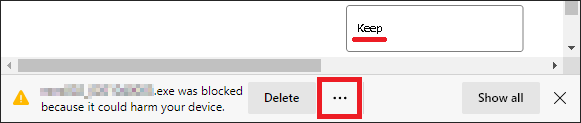
    1. By clicking [···] beside the file to download, a menu will appear. From the menu, click [Keep].
      png
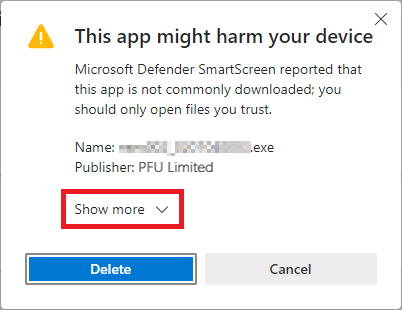
    2. A message is displayed, saying "This app might harm your device". Click [Show more].
      png
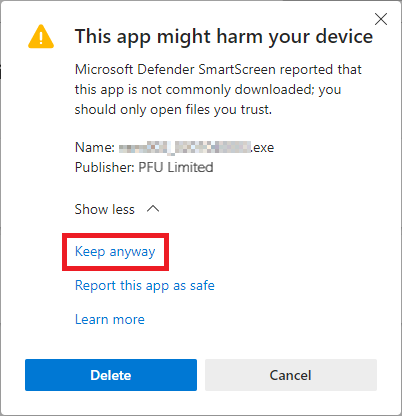
    3. Click [Keep anyway]. (All files provided by PFU are inspected.)
      png
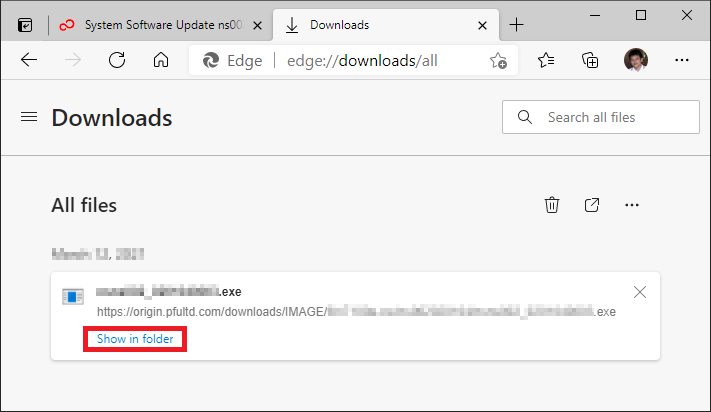
    4. A list of downloaded files is displayed. Click [Show in folder].
      png
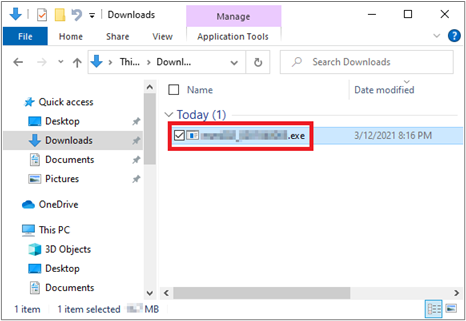
    5. Confirm that the target file is saved in the folder.
      png
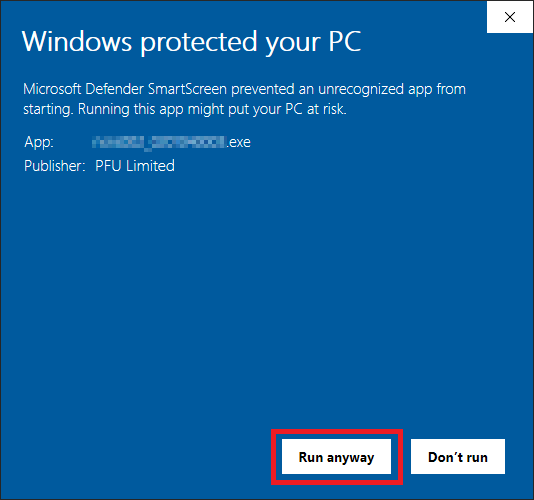
    Then, when you try to run the saved file, a message may say "Windows protected your PC". This is a message from Microsoft Defender SmartScreen, which prompts the user to confirm that the file the user intends to run is free of risk.
    If the message appears, follow the steps below.

    [Operational procedure]
    The windows displayed may differ depending on the environment.
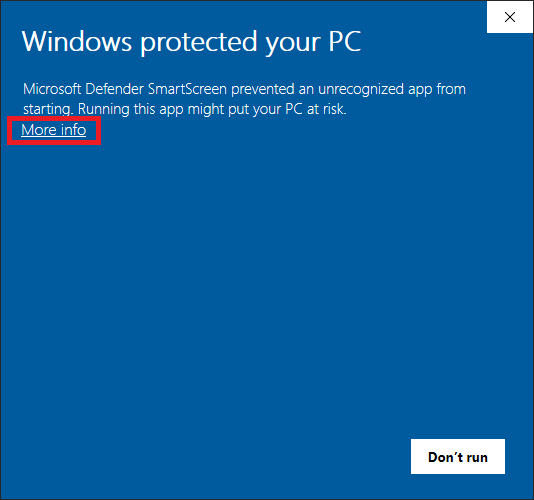
    1. Under the message "Windows protected your PC", click [More info].
      png
    2. Click [Run anyway]. (All files provided by PFU are inspected.)
      png
    Check that the software update is run by the above operations.