

Changing Users in order to Display the User's Own Profiles on the Touch Panel
When multiple users share a single ScanSnap unit, you can switch the profiles displayed on the touch panel for each target user or for all users.
For security purposes, you can also change the privacy mode setting to display profiles only while the ScanSnap and mobile device are connected. Once privacy mode is enabled, profile information is deleted from the ScanSnap every time the ScanSnap is disconnected from the mobile device.
Method for displaying profiles
The method for displaying profiles varies depending on the privacy mode setting.
- When privacy mode is disabled
-
Profiles of the user selected on the touch panel are displayed.
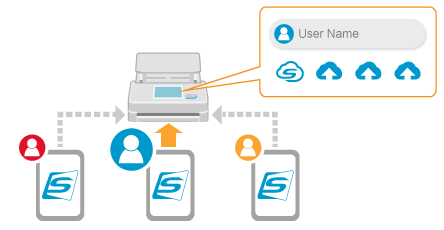
Selecting [All users] in the [Selecting a User] screen displays all profiles created with mobile devices that have been connected to the ScanSnap before on the touch panel.
Even if the ScanSnap is not connected to a mobile device, you can scan documents by selecting a profile which establishes a link with a cloud service via ScanSnap Cloud.
- When privacy mode is enabled
-
Profiles are displayed on the touch panel as long as the ScanSnap is connected with the mobile device.
The profiles displayed are those for saving scanned images to the mobile device that is connected to the ScanSnap.
This method offers a good level of security because profiles are not displayed on the touch panel when the ScanSnap and mobile device are disconnected.
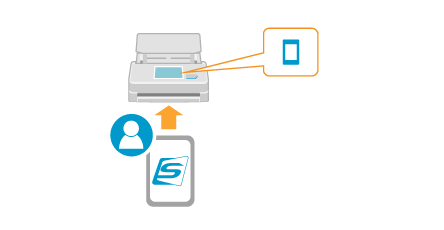
To change the user to display profiles, reconnect the ScanSnap and mobile device.
Changing users in order to display the user's own profiles on the touch panel
Press the user name at the top of the home screen on the Scan Snap touch panel to display the [Selecting a User] screen.

Select a user name for which you want to display the profile.
The target user, whose profiles will be displayed on the touch panel, is changed.
Selecting [All users] in the [Selecting a User] screen displays all profiles created with mobile devices that have been connected to the ScanSnap before on the touch panel.
Note that if you are using ScanSnap Home without signing in to a ScanSnap account, a device name appears in the [Selecting a User] screen. Selecting a device name switches profiles displayed on the touch panel to profiles created with the selected mobile device.
Enabling privacy mode
Press
 in the home screen on the touch panel of the ScanSnap to display the [Settings] screen.
Press [Scanner settings] to display the [Scanner settings] screen.
Press [Privacy mode] to display the [Privacy mode] screen.
Set [Enable privacy mode] to on.
Press
 to display the home screen.
Only profiles of the mobile device connected to the ScanSnap are displayed on the touch panel.
When the ScanSnap is disconnected from the mobile device, profile information is deleted from the ScanSnap.