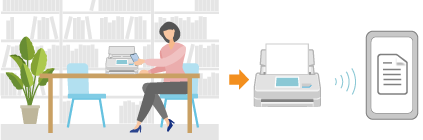
Connecting a Mobile Device by Moving It Close to the ScanSnap (ScanSnap Go)
ScanSnap Go is a feature that allows anyone to easily connect a mobile device to a ScanSnap that is available in a public space or other on-the-go locations by simply moving the mobile device close to the ScanSnap.
When ScanSnap Go is used to connect a ScanSnap and a mobile device, the scan settings saved in ScanSnap Home on the mobile device are temporarily applied to the ScanSnap.
When scanning documents, you can use the scan settings saved in ScanSnap Home on the mobile device just as they are, without changing them.
When the ScanSnap is disconnected from the mobile device, the scan settings that were saved as a profile in the ScanSnap are deleted, which ensures security.
To save images of scanned documents directly to a cloud service, you must create a ScanSnap account and register your ScanSnap with ScanSnap Home.
iOS/iPadOS
If the ScanSnap is connected to another computer or mobile device, that connection will be ended when you start using ScanSnap Go. Make sure that no one else is using the ScanSnap before you start using ScanSnap Go.
-
When you are using ScanSnap Go to connect the ScanSnap to a mobile device, the mobile device cannot connect to the Internet. After scanning documents with the ScanSnap, stop using ScanSnap Go and connect the mobile device to the Internet. Then, the following processes will be executed:
Saving scanned images to a cloud service
Creating a searchable PDF file
Generating a file name automatically
Extracting business card information
Android/Chrome OS
ScanSnap Go is not supported for Chromebook.
If the ScanSnap is connected to another computer or mobile device, that connection will be ended when you start using ScanSnap Go. Make sure that no one else is using the ScanSnap before you start using ScanSnap Go.
After scanning documents with the ScanSnap, the following processes will be executed when you disconnect your mobile device from the ScanSnap to stop using ScanSnap Go and connect the mobile device to the Internet.
Creating a searchable PDF file
Generating a file name automatically
Extracting business card information
Getting Started with ScanSnap Go
Make sure that the ScanSnap Go icon
is displayed at the top of the ScanSnap touch panel.
If the ScanSnap Go icon is not displayed, ask your ScanSnap administrator.
The ScanSnap administrator should enable ScanSnap Go.
Tap the ScanSnap Go icon
at the top of ScanSnap Home on the mobile device to display the [About ScanSnap Go] screen.If the [About ScanSnap Go] screen is set not to appear, go to step 4.

-
Tap the [Get started with ScanSnap Go] button.
-
Follow the instructions on the screen that appears to connect the ScanSnap to the mobile device.
If the message "Move your mobile device closer to the ScanSnap." is displayed during operation, move your mobile device closer to the [Scan] button on the ScanSnap.

The ScanSnap and the mobile device are connected and the scan settings saved in ScanSnap Home on the mobile device are applied to the ScanSnap.
Load documents in the ScanSnap, select a profile in the profile list on the touch panel, and then press the [Scan] button to start scanning.
If you have previously used ScanSnap Go, you can start ScanSnap Go by launching ScanSnap Home on your mobile device and moving your mobile device closer to the ScanSnap.
Perform the following operations in ScanSnap Home after disconnecting the ScanSnap from the mobile device to stop using ScanSnap Go.
Adding scan settings
Operations on the screen that appears when you tap [Detailed settings] on the Scan screen
Operations on the menu that appears when you tap
.
Ending the ScanSnap Go Connection
Perform one of the following to end the ScanSnap Go connection.
Tap
at the top of the ScanSnap Home screen on the mobile devicePress the [Disconnect] button on the ScanSnap touch panel
Switch to a screen outside ScanSnap Home on your mobile device
Exit ScanSnap Home on your mobile device
When the ScanSnap is disconnected from the mobile device, the scan settings that were saved as a profile in the ScanSnap are deleted.