
Rack2-Filer V5.0 Service Pack 2
Service Pack Download
Rack2-Filer V5.0 Service Pack 2 (V5.0L41)
- "Rack2-Filer V5.0 Service Pack2" cannot be installed in a computer in which Rack2-Filer V5.0 (Trial Version) is already installed.
Rack2 Folder Monitor Software (V5.0L31)
Download "Rack2 Folder Monitor Software V5.0 L31" by clicking and selecting
 Rack2FolderMonitorV50L31.exe (4.27MB)
Rack2FolderMonitorV50L31.exe (4.27MB)
- To use the Rack2 Folder Monitor Software (automatic file import function) after Rack2-Filer V5.0 Service Pack 2 is applied, first download and install Rack2 Folder Monitor Software V5.0L31 and then apply Rack2-Filer V5.0 Service Pack 2 again. This procedure is not required if Rack2 Folder Monitor Software is already installed when Rack2-Filer V5.0 Service Pack 2 is applied. Rack2 Folder Monitor Software is also updated when Rack2-Filer V5.0 Service Pack 2 is applied.
Modifications
After it is applied, Rack2-Filer V5.0 Service Pack 2:
- Now Supported for Microsoft® Office 2010.
- Corrected the problem of the binder spine turning white when importing data from the Print menu of other applications or Rack2 Folder Monitor Software into Rack2-Filer.
- Corrected the problem of the default printer printing out if files were inserted from Rack2-Viewer or Rack2 Folder Monitor Software on Windows® 7.
- Corrected the problem of an error occurring when an annotation was added or when [Right Rotated], [Left Rotated], [Pages From File], or [Cycle Pages] is performed if Fullscreen was set in the Window Mode of Rack2-Viewer settings.
- The following problems for Rack2 Folder Monitor Software have been corrected.
- Corrected the problem of monitoring the monitored folder for a shorter interval than the Check folder every set in Rack2 Folder Monitor Software.
- Some of other minor problems have been corrected or improved.
Please refer to README of Rack2-Filer V5.0 Service Pack 2 for detail information.
 README for V5.0L10 or V5.0L11 or V5.0L31a or V5.0L40a user:
The case that Rack2-Filer V5.0L10 or V5.0L11 or V5.0L31a or V5.0L40a has been installed.
README for V5.0L30 or V5.0L31 or V5.0L40 user:
The case that Rack2-Filer V5.0L30 or V5.0L31 or V5.0L40 has been installed.
Refer to Product Manual for the new features 
Operating Procedures
- Download "Rack2V50SP2.exe" from an environment in which allows the access to the Internet.
- Select [Save] when a dialog box that prompts for file processing method appears.
* Make a note of where you save "Rack2V50SP2.exe" (desktop is recommended). - Log on to Windows with the User Name (with administrator privileges) that has been used when the old version of Rack2-Filer was installed.
- Execute the downloaded "Rack2V50SP2.exe" to begin installation.
Note: In some cases, a message which requests the user to restart the system may appear. In this case, restart the system accordingly. - The Installer is activated and the following message appears. Click the [Next] button to continue.
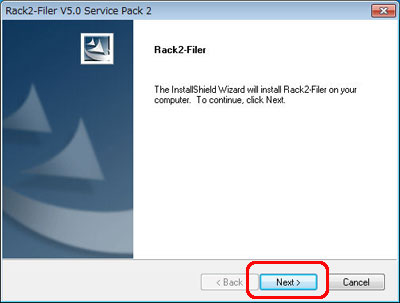
- Follow the instructions in the InstallShield Wizard to proceed with the installation.
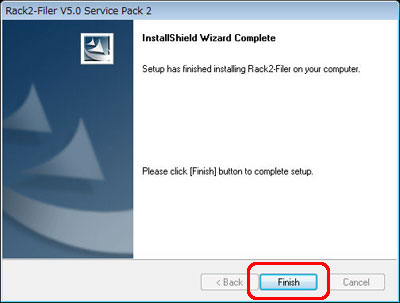
- The "InstallShield Wizard Complete" window appears after installation of Rack2-Filer V5.0 Service Pack 2 is complete.
How to Verify that Rack2-Filer V5.0 Service Pack 2 Has Been Successfully Installed
- Rack2-Filer
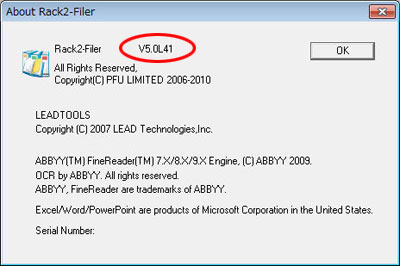
Launch Rack2-Filer, and select the [About Rack2-Filer] from the [Help] menu.
Either of the following dialog boxes appears.
After this update is applied, the version becomes V5.0L41.
- Rack2-Viewer
Launch Rack2-Viewer, and select [Settings] to open the following dialog box.
After this update is applied, the version becomes V5.0L33.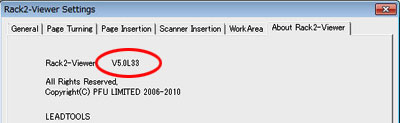
- Rack2 Folder Monitor Software
While Rack2 Folder Monitor Software is launched, right-click the task tray icon and select [Version Information] to open the following dialog box. After this update is applied, the version becomes V5.0L32.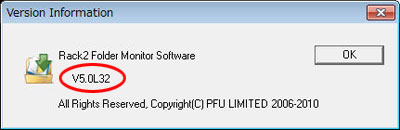
How to Exit Rack2 Folder Monitor Software
For Windows® 2000 / Windows® XP / Windows Vista™
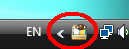
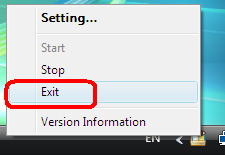
- While Rack2 Folder Monitor Software is launched, the Rack2 Folder Monitor Software icon is displayed in the task bar on the bottom right of the screen.
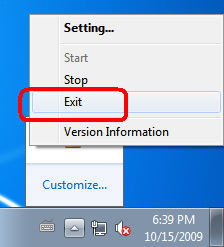
- To exit Rack2 Folder Monitor Software, right-click on the icon, and select [Exit].
For Windows® 7
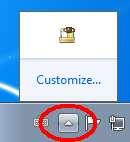
- Click the button on the bottom right of the screen to display the hidden icons.
While Rack2 Folder Monitor Software is launched, the Rack2 Folder Monitor Software icon is displayed. - To exit Rack2 Folder Monitor Software, right-click on the icon, and select [Exit].