

What You Can Do with the ScanSnap
What is the ScanSnap?
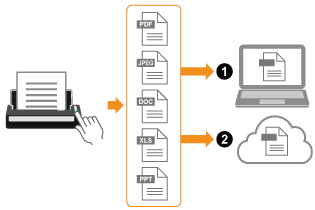
The ScanSnap is an image scanner that can scan various types of documents such as paper documents, business cards, receipts, and photos and convert them into image data in a PDF, JPEG, Word, Excel, or PowerPoint format.
The image data can be saved and used on a computer, a mobile device, or in a cloud service, depending on your purpose.
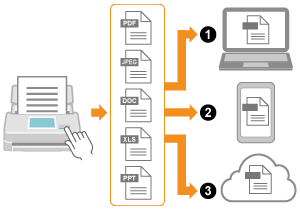
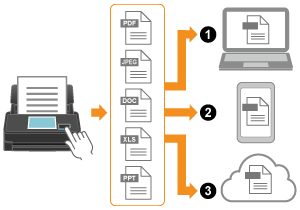
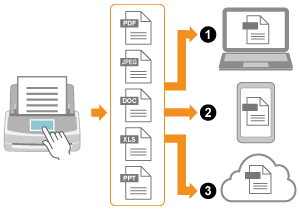
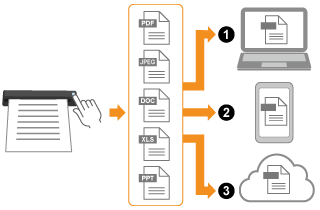

 Saving images to a mobile device (*1)
Saving images to a mobile device (*1)
Saving images to a mobile device (*1)
Saving images to a mobile device (*1)
Saving images to a mobile device (*1)
 Saving images to a cloud service (*2)
| *1: | Only image data in PDF or JPEG format can be saved to a mobile device. |
| *2: | Image data in Word, Excel, or PowerPoint format can be saved to a cloud service only when it is saved to a specified cloud service through a computer. |
What is the ScanSnap?
The ScanSnap is an image scanner that can scan various types of documents such as paper documents, business cards, receipts, and photos and convert them into image data in a PDF, JPEG, Word, Excel, or PowerPoint format.
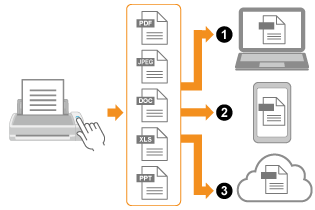
The image data can be saved and used on a computer or in a cloud service, depending on your purpose.
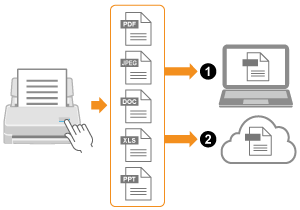
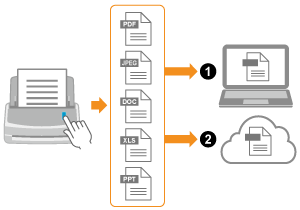
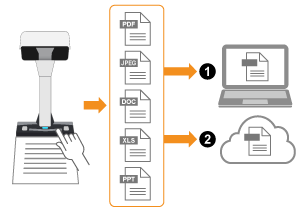
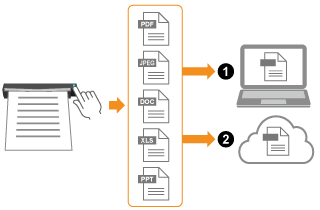
Saving images to a cloud service (*1)
| *1: | Image data in Word, Excel, or PowerPoint format can be saved to a cloud service only when it is saved to a specified cloud service through a computer. |
What You Can Do with the ScanSnap and ScanSnap Home
- The ScanSnap and a computer can be connected via Wi-Fi
-
You can connect the ScanSnap and a computer via Wi-Fi.
To connect them, you can use either the access point connection in which a wireless access point is used for connection or the direct connection in which a computer or mobile device is directly connected to the ScanSnap. Select a suitable connection method depending on whether there is Wi-Fi in a place where you use the ScanSnap or not.
You can use a single ScanSnap unit with multiple computers.
- Various documents can be scanned
-
You can scan various documents with the following two scanning methods.
U-turn Scan which allows you to scan documents all at once
Return Scan which allows you to scan documents such as business cards, photographs, post cards, and thick documents (e.g. plastic cards and booklets) one by one.
When you scan a document larger than A4/Letter size, which is folded in half, in duplex mode, you can merge the scanned images of both sides of the document into one double-sided image.
Scanning documents folded in half is only available for Return Scan.
You can scan documents such as large drawings, documents with sticky notes attached, or folded/curled receipts without any trouble by using the Receipt Guide and the manual scan function.
By using the Receipt Guide, you can place documents with different widths such as receipts in it to scan them at the same time.
-
When scanning small size documents such as business cards and postcards, you can insert two documents at a time in the ScanSnap. Alternatively, you can insert the next document while another document is being scanned. In either method, you can scan up to 20 documents continuously in a single scanning operation.
These scanning methods are referred to as dual scans.
When you manually feed a document larger than A4/Letter size, which is folded in half, to scan it in duplex mode, you can merge the scanned images of both sides of the document into one double-sided image.
When you scan a document larger than A4/Letter size, which is folded in half, one side at a time, you can merge the scanned images of both sides of the document into one double-sided image.
Multiple documents and multiple pages of a book can be scanned continuously and efficiently with the page turning detection and timed mode.
- Your settings for scanning documents can be saved
-
You can customize settings (document type setting, scan setting, save destination for an image, application that you want to run after a scan is complete, and so on) for the purpose of a scan and then save them in the form of a profile.
Saving a profile that you created according to the purpose of a scan allows you to perform a scan that meets your purpose by simply selecting the profile.
When multiple users share one ScanSnap unit, you can switch the profiles between your own profiles and profiles for all users.
- Document types can be identified automatically according to scanned documents
-
The scanned images of the documents are saved in the most appropriate format for each document type ([Documents], [Business Cards], [Receipts], and [Photos]) by using the document type automatic detection function. In addition, you can manage the content information, such as the date when you scanned the document and the result of the text recognition for the character string in the document, by document type.
The scanned images of the documents are saved in the most appropriate format for each document type ([Documents], [Business Cards], [Receipts/Invoices], and [Photos]) by using the document type automatic detection function. In addition, you can manage the content information, such as the date when you scanned the document and the result of the text recognition for the character string in the document, by document type.
A scanned image together with content information is referred to as content data record.
- Scanned images can be saved to a cloud service
-
ScanSnap Cloud allows you to save scanned images to a cloud service by simply scanning documents. The scanned images are saved in the desired cloud service via the ScanSnap Cloud server.
Images created from the documents that you scanned are stored for two weeks on the ScanSnap Cloud server.
To use ScanSnap Cloud, you must sign in to a ScanSnap account.
For regions where ScanSnap accounts can be used, refer to here.
- Scanned image files can be named automatically
-
With the auto name function, content data records to be displayed in ScanSnap Home and files to be saved in a destination can be named automatically.
- Content data records can be managed in ScanSnap Home
-
You can manage the content information, such as the date when you scanned the document and the result of the text recognition for the character string in the document, by document type.
A scanned image together with content information is referred to as content data record.
After the documents are scanned with the ScanSnap, the scanned images can be corrected.
You can comprehensively manage the files in the local folders or the network folders as well as the content data records created from the documents that you scanned with the ScanSnap.
You can classify files based on document types, history of scanning documents, or tags, regardless of the file format (PDF or JPEG). In addition, full-text search is available for content data records.
You can output the contact information on a business card or the amount on a receipt in a format such as CSV to use it with outside applications.
You can output the contact information on a business card or the amount on a receipt/invoice in a format such as CSV to use it with outside applications.
- Troubles on scan results are reduced
-
You can avoid troubles that may occur on scan results with the dust detection function that detects dirt on the glass inside the ScanSnap and the vertical streaks reduction function that reduces vertical streaks which appear on scanned images.
You can avoid troubles that may occur on scan results with the vertical streaks reduction function that reduces vertical streaks which appear on scanned images.