Loading Documents of Different Sizes in One Batch
Load a batch of multiple documents with different widths and lengths in the ScanSnap.
Scanning documents of different sizes in one batch is available for U-turn Scan, in which a document is loaded in the ADF paper chute (cover) and scanned.
-
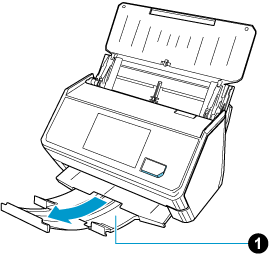
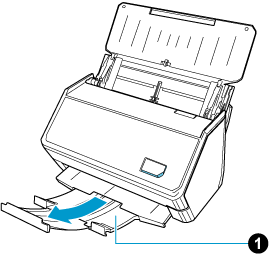
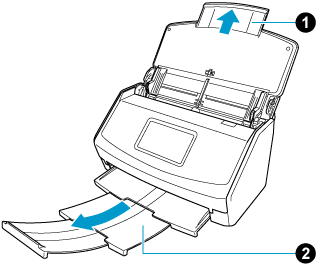
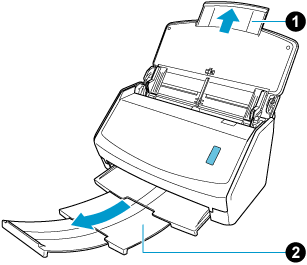
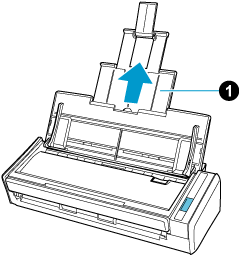
Extend the stacker
 on the ScanSnap. Pull out the extension and the stacker
  on the ScanSnap. Pull out the extension on the ScanSnap.
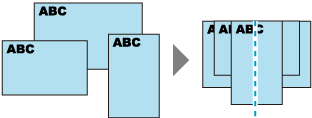
- Align the leading edge and the center of the documents.
- Load the documents in the ScanSnap.
Adjust the side guides with both ends of the widest document in the batch.
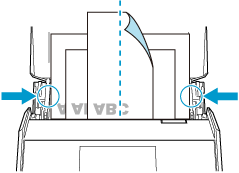
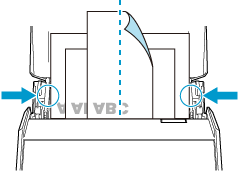
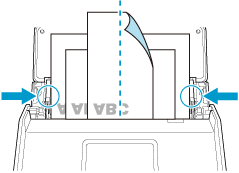
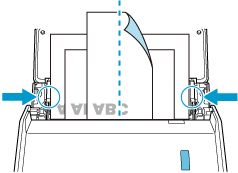
Use the Receipt Guide provided with the ScanSnap to load documents such as smaller size business cards and receipts that tend to curl easily in one batch for efficient scanning.
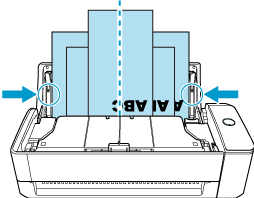
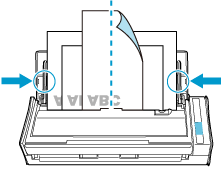 ATTENTION
-
Make sure that the document support tab is open.
Otherwise, a paper jam may occur.
If the document support tab is closed, pull it up with your fingers.
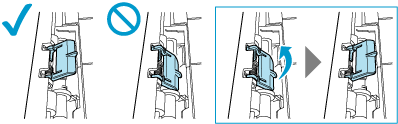
-
If the document support tab comes off, contact the distributor/dealer where you purchased this product.
-
-
Specify the feeding method on the touch panel. Press the feed mode setting icon on the touch panel and select [Normal scan] or [Continuous scan] on the [Feed mode setting] screen.
Press the arrow at the bottom of the touch panel to display the scan settings. In [Feed] that appears when you press the feed icon, select [Normal scan] or [Continuous scan].
For details about feed setting items, refer to Displayed Screens on the Touch Panel.
For details about feed mode setting items, refer to Displayed Screens on the Touch Panel.
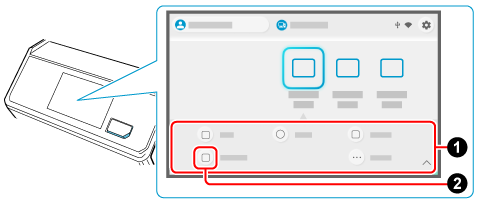
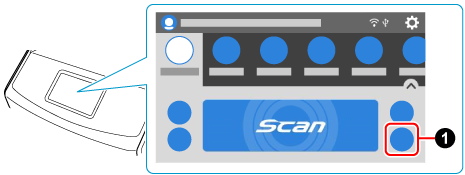
-
Specify the feeding method on the computer.
When [Cloud] is selected for [Type] in [Managing options] in the [Edit profiles] window, you do not need to modify the settings.
-
Specify the feeding method in [Feed] .
Normal scan
Scanning automatically finishes when all of the documents loaded in the ScanSnap are scanned.
Continuous scan
Documents are scanned continuously in multiple batches.
Select this feeding method to scan documents more than the amount that can be loaded in the ADF paper chute (cover) on the ScanSnap.
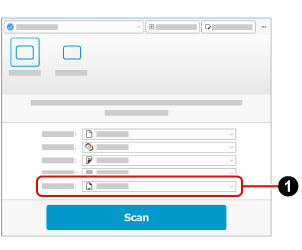
-
Click the feed mode settings icon to specify the feeding method.
-
Specify the feeding method in [Feed]
-
Specify the feeding method on the computer.
-
Click the [Edit profiles] button to display the [Edit profiles] window.
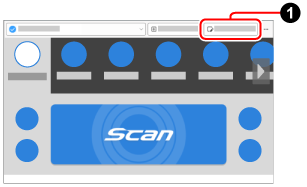
-
Modify the settings for a profile in the [Edit profiles] window.
Select a profile that you use when scanning a document from the profile list. Click the [Option] button for [Feed] to display the [Feed option] window.
![[Edit profiles] Window](../../../jp/pc/images/common/ope_PF_edit_old_03.png)
 Modify the settings in [Feed].
 Select [None] or [Never] for [Multifeed detection].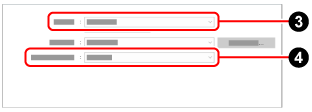
-
Click the [Edit profiles] button